TL;DR: Follow our step‑by‑step checklist to resolve Amazon Seller Central login failures, reset passwords, recover 2FA, and keep your account safe.
Key Takeaways
- Identify the exact symptom (password rejection, missing 2FA code, etc.) before troubleshooting.
- Use the provided step‑by‑step fixes, including reset password, recover 2FA, clear browser data, to restore access quickly.
- Apply the prevention checklist (password manager, backup 2FA, team policies) to avoid future lockouts.
Table of Contents
Note on marketplaces: This guide is specifically optimized for the US market.
Quick Answer
If you cannot log into Amazon Seller Central, the fastest safe fixes are to reset your password, recover your two‑step verification (2FA) method, and clear any cached browser data. Start with the checklist below, then move to detailed troubleshooting if the issue persists.
The fastest safe fixes
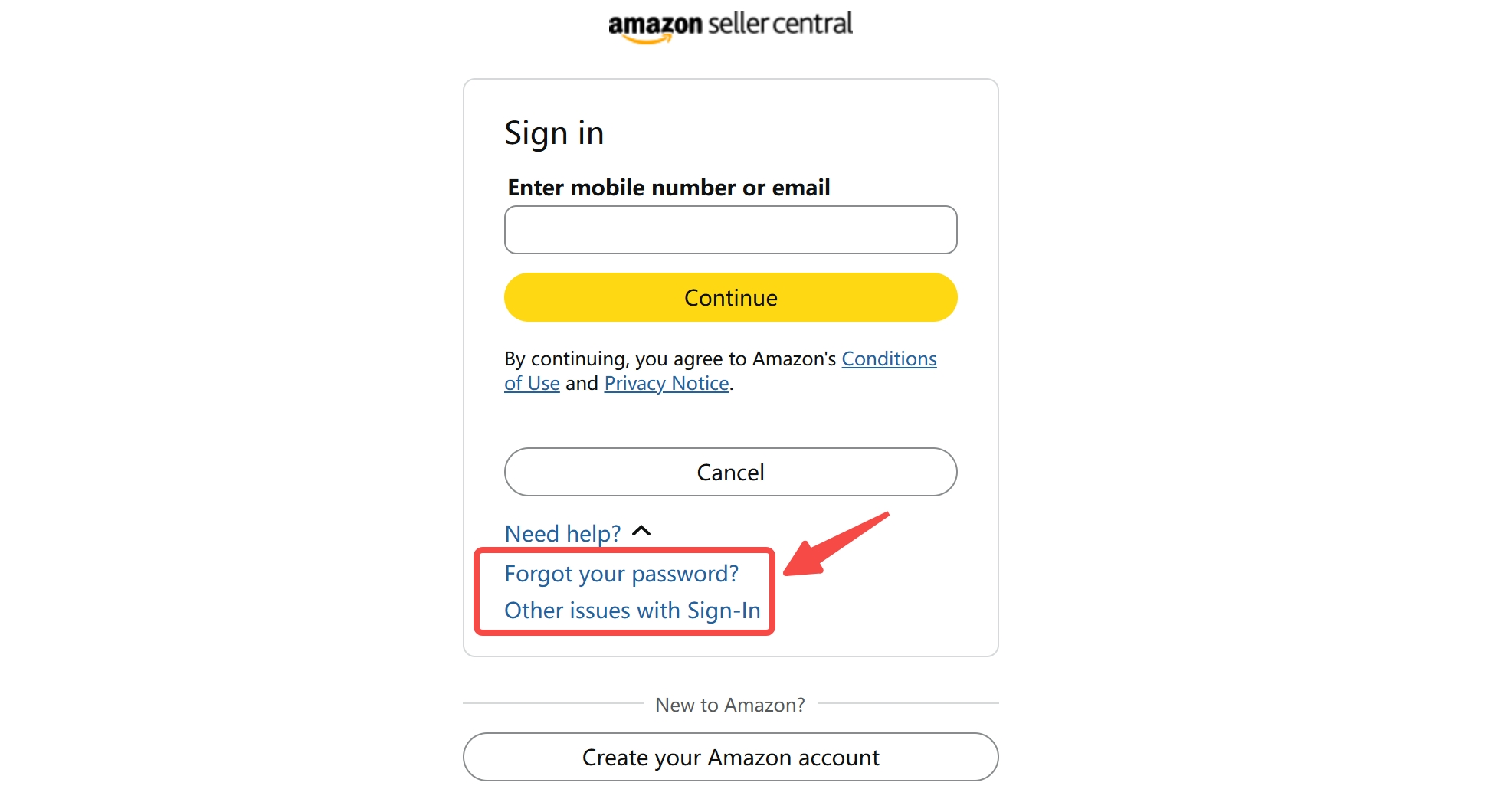
1️⃣ Use the Forgot password link on the login page.
2️⃣ If you're stuck on the 2FA screen, click "having trouble?" to receive a new code via SMS or email.
3️⃣ Clear your browser's cache, cookies, and extensions, then try a private/incognito window.
Common Amazon Seller Login Symptoms
Understanding the exact symptom helps you choose the right fix. Below are the most frequent problems sellers encounter.
Password rejected
Your password may be mistyped, expired, or compromised. Amazon will display "Your password is incorrect." This usually requires a password reset.
2FA code not received
Even with correct credentials, you might never get the one‑time code. Causes include outdated phone numbers, blocked SMS, or email filters.
Verification loop
After entering the correct code, Amazon asks for verification again, often a sign of security flags or mismatched IP locations.
Wrong marketplace selected
Amazon operates separate Seller Central portals (e.g., .com, .co.uk). Selecting the wrong domain can trigger login failures even with correct credentials.
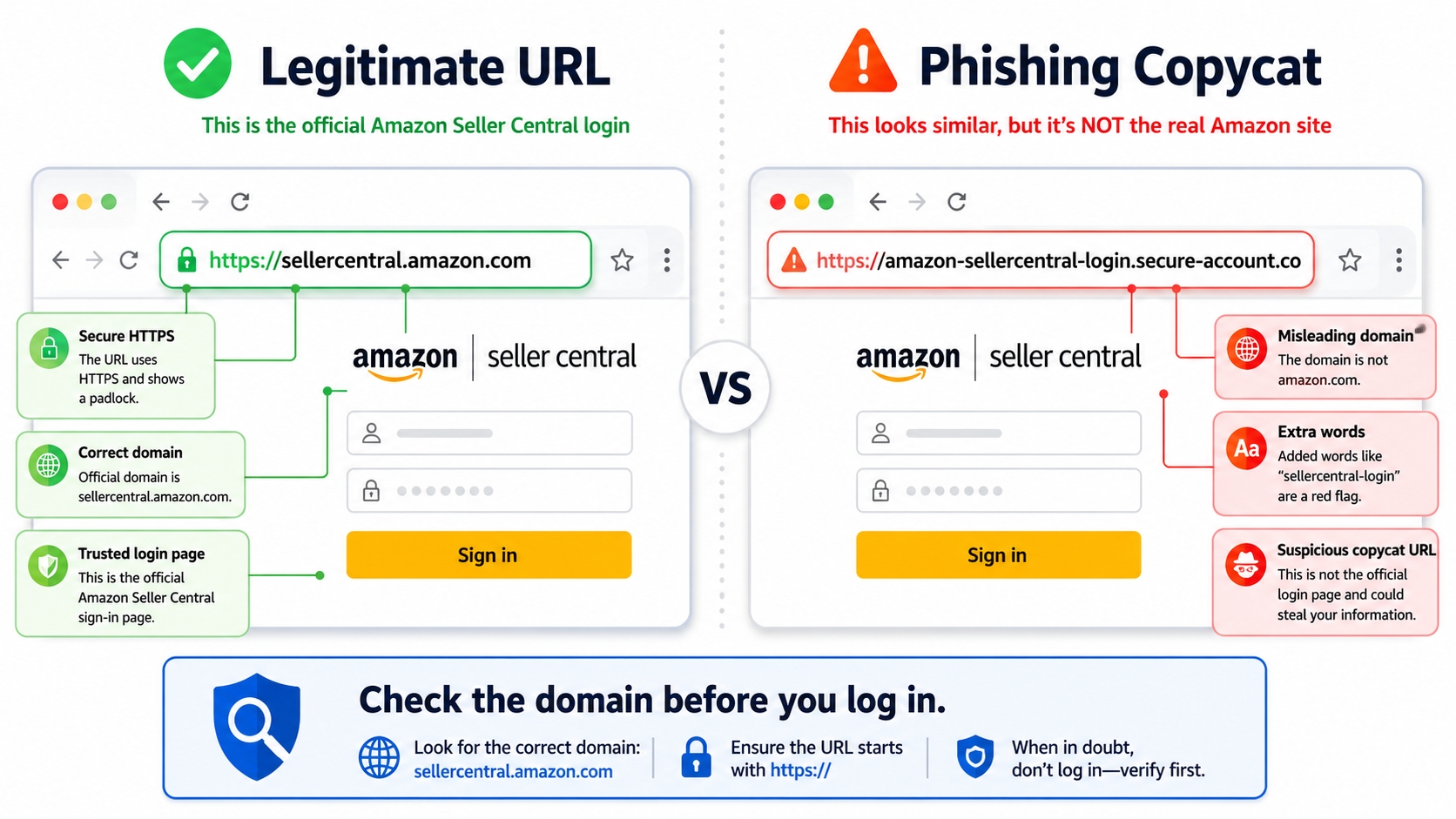
How to confirm the official login context
Always verify the URL begins with sellercentral.amazon.com and look for the green lock icon. Bookmark the correct page to avoid phishing sites.
Step‑By‑Step Fixes
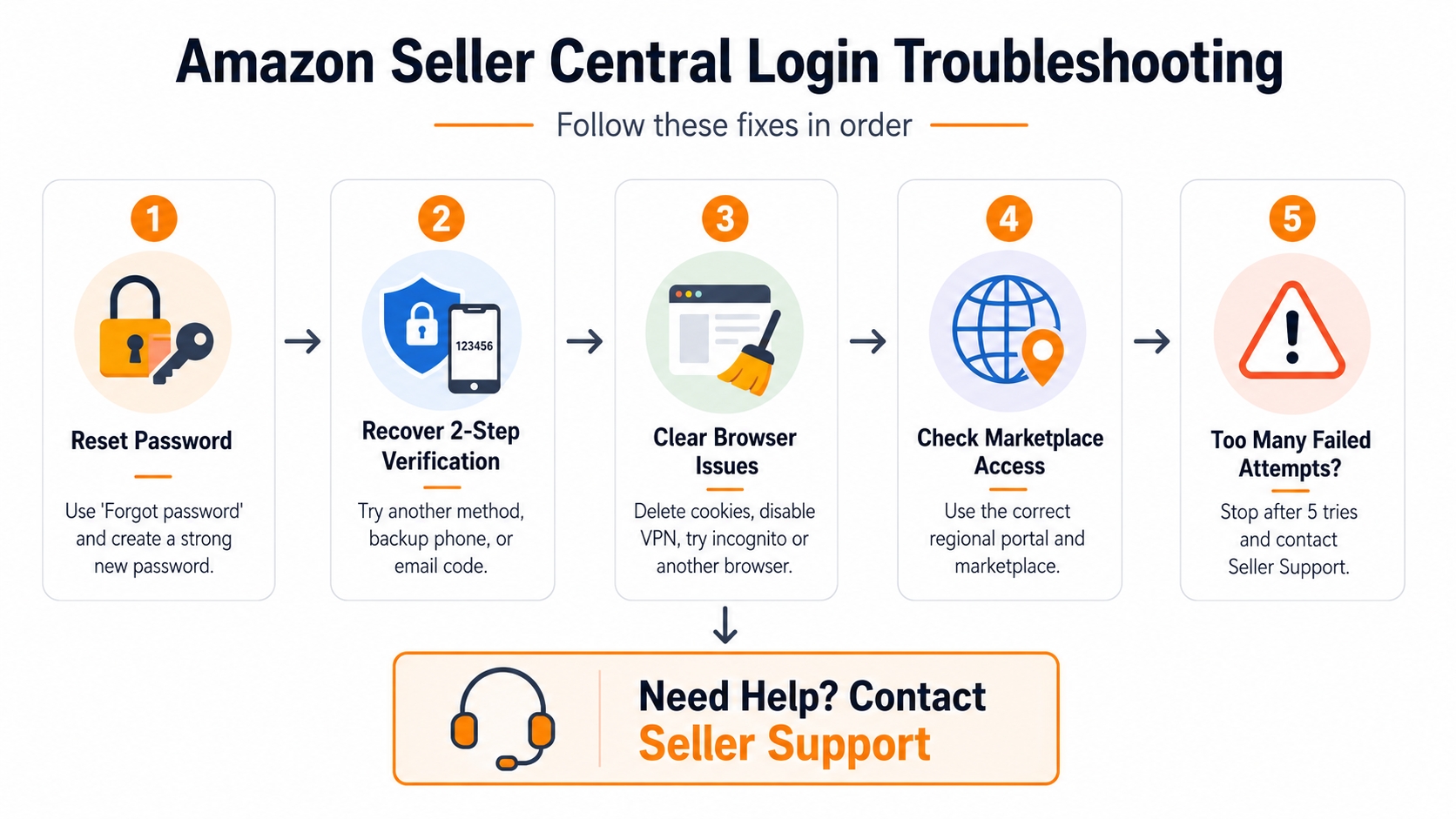
Follow these actions in order. Skip ahead only if you're sure the preceding step didn't apply.
Reset password
1. Click "Forgot password" on the login page.
2. Enter your registered email or mobile number.
3. Follow the email link to set a new, strong password (minimum 12 characters, mix of letters, numbers, symbols).
4. Test the new password in a private browser window.
Recover two‑step verification
If you can't receive the code:
• Choose the "Try another method" option.
• Request a code via email or backup phone.
• If both fail, contact Seller Support and provide your Seller ID for identity verification.
Clear browser/session issues
Outdated cookies or extensions can corrupt the login flow. Steps:
1. Delete cookies for sellercentral.amazon.com.
2. Disable VPNs or proxy services temporarily.
3. Try a different browser (Chrome, Firefox, Edge) or incognito mode.
Check marketplace‑specific access
Make sure you're on the correct regional portal (e.g., .com for US sellers). If you manage multiple marketplaces, switch via the "Settings → Account Info → Your Marketplace" menu after you're logged in.
When not to keep retrying
Excessive failed attempts can trigger an automatic lockout. If you've tried more than five times, stop and use the "Account locked" workflow (contact Seller Support) to avoid longer suspension.
Account Security Warnings
Even if you regain access, stay vigilant for security threats that may have caused the lockout.
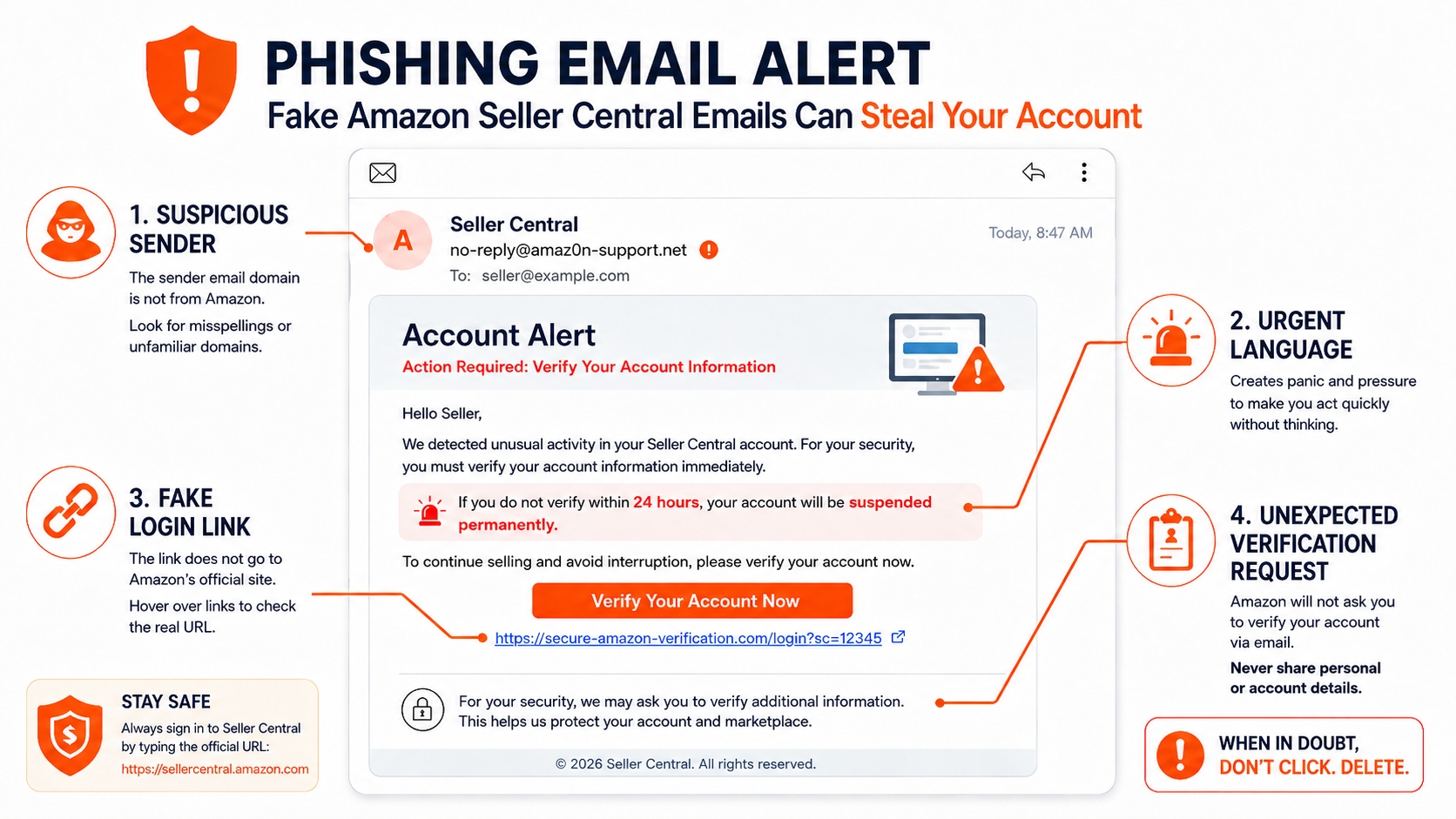
Phishing signs
Look out for emails that mimic Amazon but use a different domain (e.g., @amazonseller.co). Never click links from unsolicited messages, and always navigate directly to sellercentral.amazon.com.
Suspicious third‑party access
If you share login credentials with employees or agencies, audit their access logs. Unexpected IP locations or device types could indicate compromised accounts.
Prevention Checklist
Implement these habits now to keep your Seller Central account stable and secure.
Password manager
Store complex passwords in a reputable manager (e.g., LastPass, 1Password). Enable auto‑fill only on trusted devices.
Backup 2FA method
Register a secondary phone number or authenticator app (Google Authenticator, Authy). Keep recovery codes in a secure vault.
Team permission policy
Grant the least‑privilege access needed for each role. Regularly audit user permissions in Settings → User Permissions.
FAQ
Why is my Amazon Seller Central login not working?
Common causes include an outdated password, an incorrect marketplace URL, blocked cookies, or a security flag triggered by unusual IP locations. Follow the "Quick Answer" fixes first, then move to the step‑by‑step troubleshooting.
What should I do if I forgot my Amazon seller password?
Click the "Forgot password" link on the login page, enter the email or phone tied to your seller account, and follow the emailed instructions to set a new password. Use a password manager to store the new credentials.
Why am I not receiving my two‑step verification code?
Check that your registered phone number is active and not blocking SMS from short‑code numbers. Verify email spam filters and consider using an authenticator app as a backup method.
What does it mean if Amazon Seller Central keeps asking for verification?
Repeated verification prompts usually signal a security concern, such as a new device, IP address, or possible account compromise. Completing the verification confirms your identity; if you cannot, contact Seller Support.
Can my Amazon seller account be locked after too many login attempts?
Yes. More than five consecutive failed attempts can trigger an automatic lock. When locked, you must submit a verification request through Seller Support, providing your Seller ID and proof of identity.
How do I recover access to my Amazon seller account?
Start by resetting the password, then recover 2FA using the "Try another method" link. If both fail, open a case in Seller Central Help → "Account & Login Issues" and attach a scanned ID and business documents for verification.
Next Steps
- Apply the Quick Answer fixes now to regain immediate access.
- Implement the Prevention Checklist to safeguard your account long term.
- Explore our Amazon Seller Login Toolkit for growth strategies.
- Ready to scale? Sign up for SellerSprite and unlock premium automation tools.
References
- Amazon Seller Central Help Center on Login Issues View
- Amazon Seller Login Guide View
- How to Create an Amazon Seller Account View
By SellerSprite Success Team
Our team combines years of experience in Amazon marketplace operations, e‑commerce growth, and technical support. Our experts specialize in troubleshooting Amazon seller related issues and helping them scale brands on Amazon.