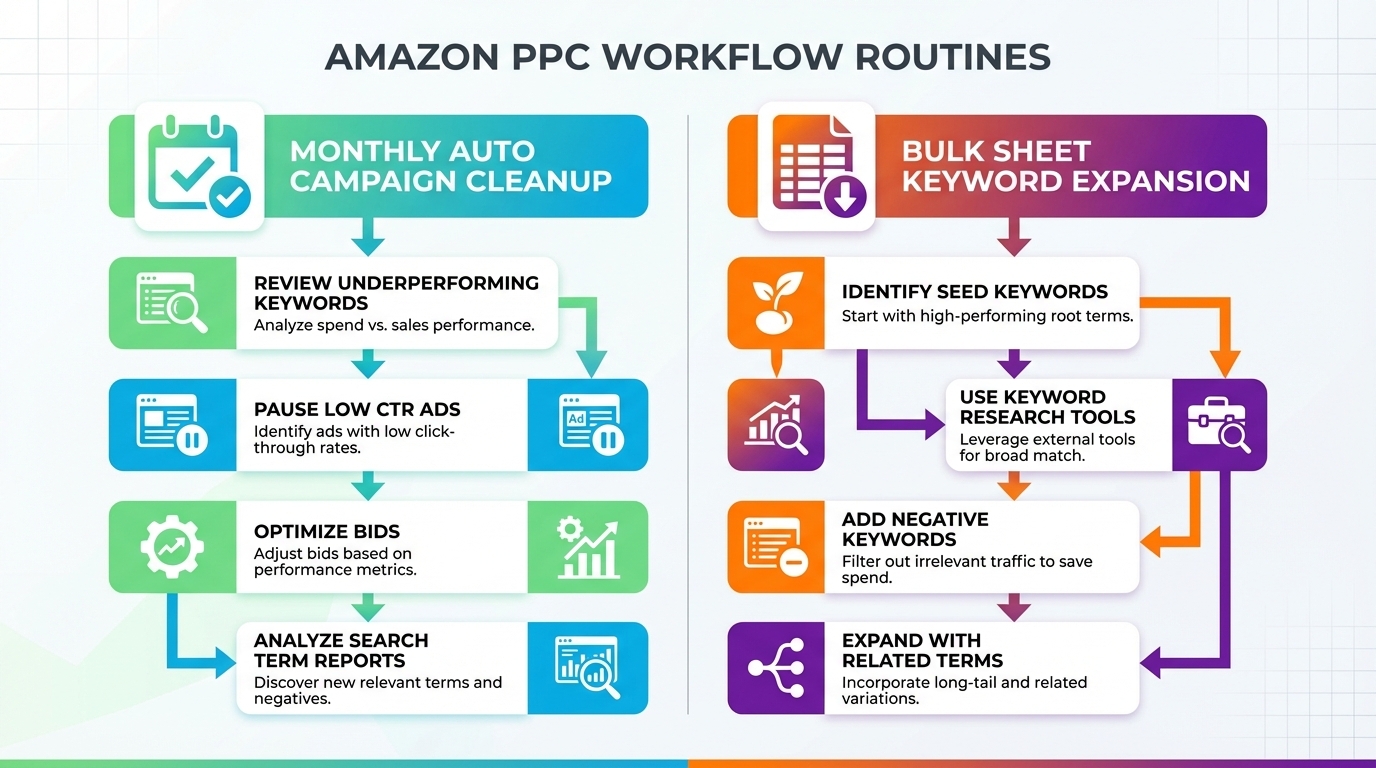
Amazon auto campaigns are powerful for discovery, but they can quietly leak budget. This chapter gives you two repeatable systems: a monthly auto cleanup that stops wasted spend, and a bulk sheet workflow that adds high-potential keywords to your best campaigns in minutes.
Stay consistent, keep your inputs clean, and let compounding do its job. Strong PPC is rarely about constant tinkering. It is about disciplined routines.
Key Takeaways
- Run a monthly auto campaign cleanup to stop repeat waste from non-converting search terms and product targets.
- Focus your negative exact list on targets with high click volume and zero sales, as well as targets with high spend and zero sales.
- Use bulk sheets to add high-potential keywords to Exact, Phrase, and Broad campaigns without rebuilding structure.
- When updating bulk sheets, copy the campaign fields and match type fields, but leave the record ID blank so Amazon can assign it correctly.
- Cleaner targeting improves profitability and can also protect conversion rate by reducing low-intent traffic.
- Use SellerSprite Seller Tools to build stronger keyword and competitor inputs before you scale bids and budgets.
Table of Contents
Monthly Auto Campaign Cleanup
Auto campaigns are excellent at discovering new opportunities, but they can also repeatedly spend on low-intent traffic. The goal of this routine is simple: remove obvious non-performers so your budget flows to better placements.
Recommended cadence
Run this once per month, using the last 30 days of search term data.
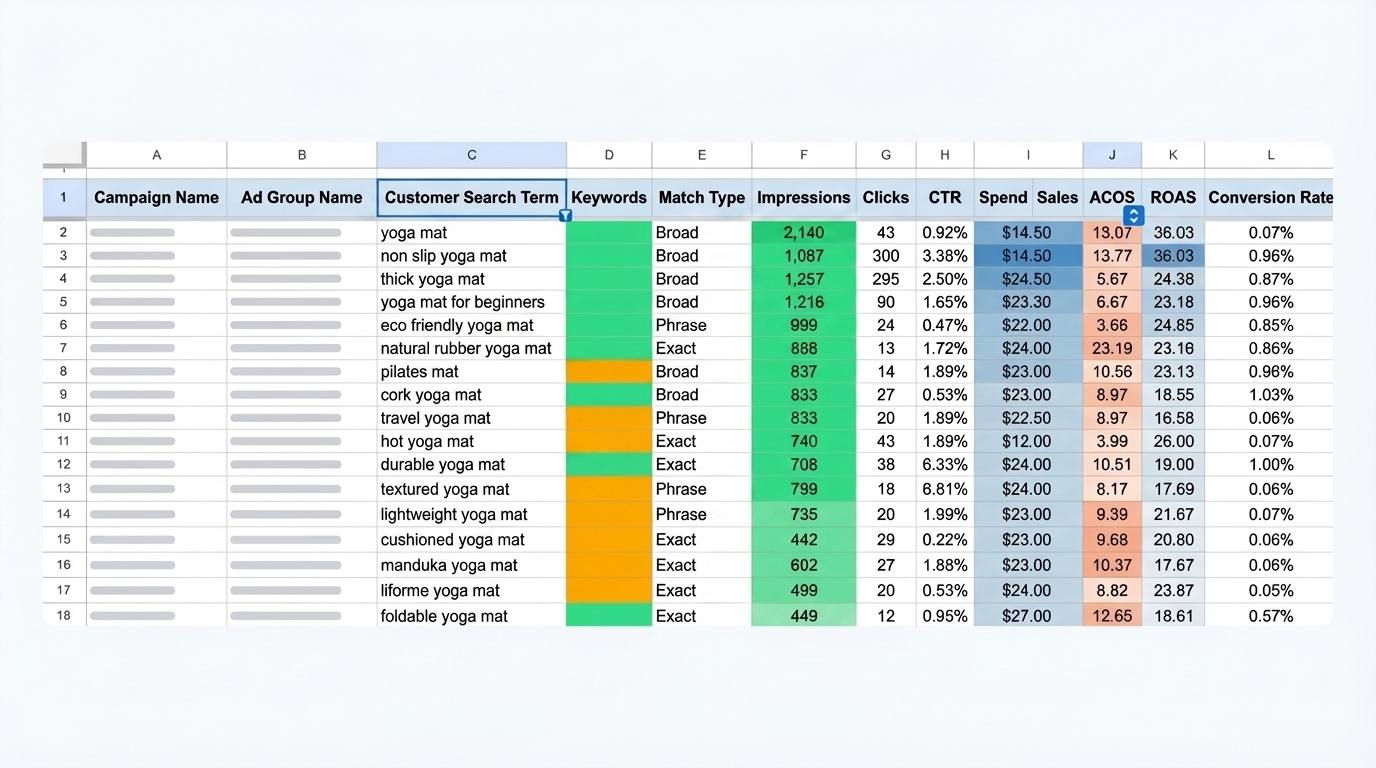
Step 1: Export your Search Term Report
- In Amazon Ads, export the Search Term Report for the last 30 days.
- Open the file in a spreadsheet editor and duplicate the tab so you always keep an original backup.
- Freeze the header row to make filtering and sorting easier.
Step 2: Filter to auto targets with zero sales
Your cleanup list should only include targets that produced zero sales. Start by removing every row that has an ACoS value, because an ACoS value implies at least one sale.
- Sort the ACoS column from high to low.
- Delete rows where ACoS has any value, keeping only rows with blank ACoS.
- Sort the Match Type column to isolate auto traffic. In many reports, auto rows appear as blank match types.
- Delete non-auto rows so you are only analyzing auto search terms and auto product targets with zero sales.
Common mistake
Do not build a negative list from mixed match types. Keep this process focused on auto campaigns first, since auto campaigns typically account for the largest share of uncontrolled waste.
Build Your Negative Exact List
Once your sheet only includes auto-targets with zero sales, you will flag two groups: high-click targets and high-spend targets. These are your best candidates for negative exact.
Rule 1: High clicks with zero sales
Sort by Clicks from high to low. Flag any target with 15 clicks or more and zero sales. These are strong signals of a mismatch or poor conversion.
Rule 2: High spend with zero sales
Sort by Spend from high to low. Flag any target with 15 dollars or more in spend and zero sales. This catches expensive leaks even when the click volume is lower.
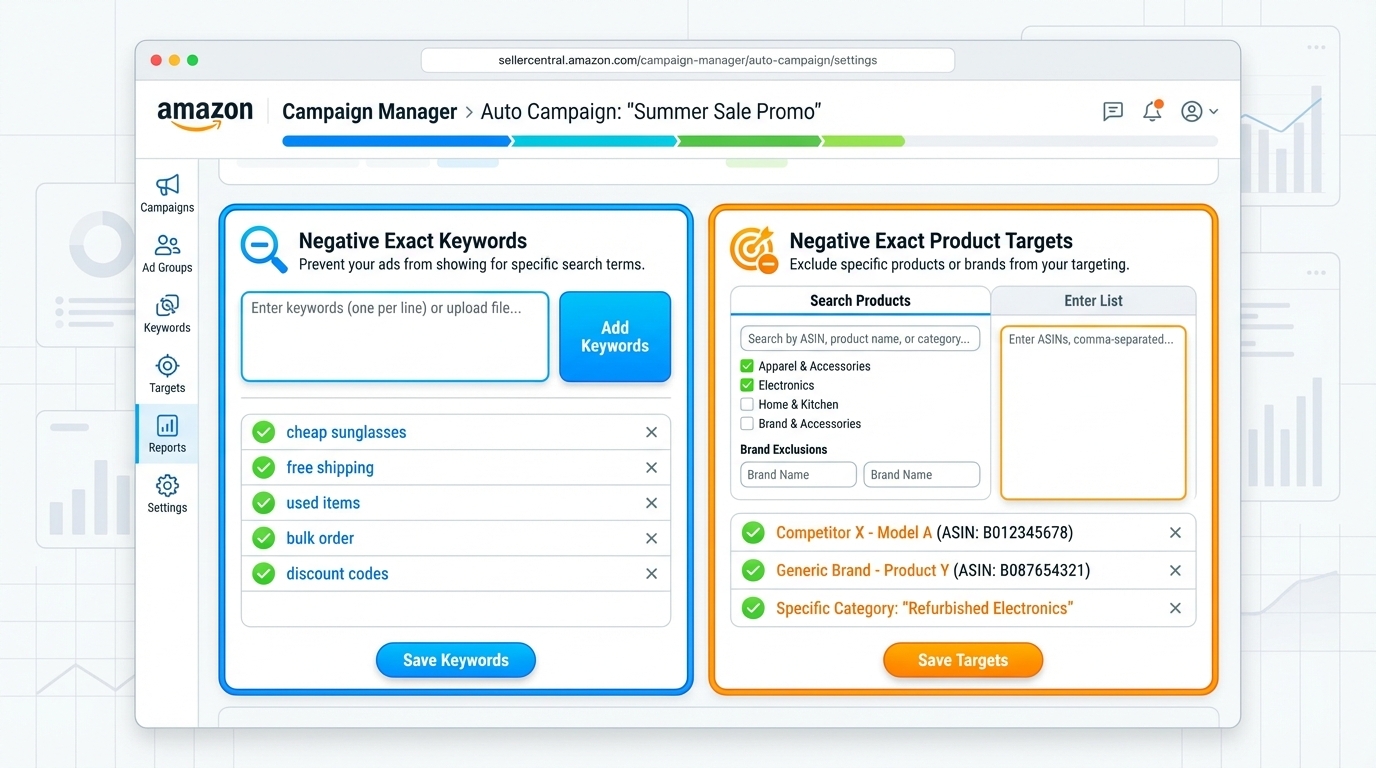
Apply negatives in Campaign Manager
- Open your auto campaign in Amazon Ads.
- Add product targets as negative product targeting with exact match.
- Add search terms as negative exact-match keywords.
- Repeat monthly to keep your negative list up to date.
Add High-Potential Keywords With Bulk Sheets
After finding profitable search terms, add them to Exact, Phrase, and Broad campaigns with bulk operations. This keeps the structure stable and reduces manual work.
Step 1: Download a bulk operations file
- Export a bulk operations file from Amazon Ads for the campaigns you want to update.
- Open the file and navigate to the section where the keywords for your target campaign begin.
Step 2: Paste keywords and bids
- Copy profitable search terms from your report.
- Paste them into the Keyword column of the correct campaign.
- Paste your intended Max Bid values for those new keywords.
Step 3: Fill required campaign fields
New keyword rows must match the formatting of existing rows in that campaign. Copy down fields that are consistent across all existing keywords.
- Copy down: Campaign Name, Campaign ID, Entity type, Match Type, and Status (Enabled).
- Leave blank: Record ID and performance metrics columns, because Amazon will populate them.
Step 4: Save, upload, and verify
- Save the bulk file as instructed by Amazon Ads bulk operations.
- Upload the file.
- Confirm your new keywords appear in the campaign and are enabled.
- Repeat for Phrase and Broad campaigns to expand coverage.
SellerSprite Workflow for Better Inputs
Cleanup and bulk scaling work best with strong targeting inputs. SellerSprite Amazon seller tools give you an advantage.
Practical SellerSprite stack
- Keyword Research: build your core list of highest intent terms for Exact campaigns.
- Keyword Mining: expand long-tail opportunities that often convert at lower CPCs.
- Reverse ASIN: extract competitor keyword coverage and validate gaps you should test.
- Keyword Tracker and Product Tracker: monitor rank movement and competitor shifts to keep your PPC decisions grounded.
Examples and Templates
Example 1: Monthly auto cleanup checklist
- Export last 30 days Search Term Report
- Duplicate the tab and freeze the header row
- Delete rows with any ACoS value
- Filter to auto only rows
- Flag targets with 15 clicks or more and zero sales
- Flag targets with 15 dollars or more spend and zero sales
- Add flagged targets as negative exact in auto campaigns
Example 2: Bulk sheet update rule of thumb
Copy down what is consistent, leave blank what is unique
Copy down: Campaign Name, Campaign ID, Entity, Match Type, Status
Leave blank: Record ID, impressions, clicks, spend, sales, ACoS
Fill manually: Keyword, Max Bid
FAQs
Q1: Should I negate everything with zero sales?
A: No. Focus on clear signals first: high click-through rates with zero sales, and high spend with zero sales. That keeps learning active while cutting obvious waste.
Q2: Why do this monthly instead of weekly?
A: Monthly cleanup gives the auto enough data to prove a pattern. Weekly is better for bid optimization routines, while monthly is ideal for structural cleanup, such as negatives.
Q3: What if I accidentally negate something valuable?
A: Keep a simple negative log. If performance drops or you identify a mistake, remove the negative and test again with a small bid and limited budget.
Q4: Where do I get new keyword ideas besides auto?
A: Use SellerSprite Keyword Research, Keyword Mining, and Reverse ASIN to build intentional keyword lists, then validate performance through your Search Term Report.
Summary and Next Steps
Auto campaigns discover opportunities, but your job is to protect the budget. A monthly cleanup routine removes repeated waste. Bulk sheets let you scale winners quickly. Together, they create a PPC engine that stays stable as your catalog grows.
For feedback or support, join the SellerSprite community.
Next step action checklist
- Run your first monthly auto cleanup using the last 30 days Search Term Report.
- Add flagged targets as negative exact in auto campaigns.
- Use bulk sheets to add your best search terms into Exact, then mirror into Phrase and Broad.
- Refresh your inputs with SellerSprite Keyword Research, Keyword Mining, and Reverse ASIN before scaling budgets.
Share Your Sourcing Journey With SellerSprite Community
Join the SellerSprite community on the Facebook Group to share your sourcing journey, ask questions, and get support from fellow Amazon sellers.
View The SellerSprite Course Directory
Ready for the next step? Open the SellerSprite Academy course directory to continue building your Amazon FBA skills chapter by chapter.
About the author
SellerSprite Team publishes practical, execution-focused playbooks for Amazon sellers, combining platform workflows, SellerSprite seller tools, and reusable templates so you can scale with fewer mistakes.