TL;DR: Reverse ASIN exports are raw data, not insights. Use a three-layer Excel workbook, clean text and number fields without deleting context, track competitor overlap, then route keywords to Defend, Expand, Test, or Ignore.
Key Takeaways
- Reverse ASIN export data is dirty until you separate raw, clean, and analysis layers in Excel.
- Do not delete duplicate keywords before counting how many competitors rank for the same term.
- Keep organic and sponsored ranks in separate columns so you can compare visibility by channel.
- Use flags and cleaning status values instead of immediate row deletion so every decision is reversible.
- After clean-up, turn overlaps and rank gaps into a small action list: Defend, Expand, Test, Ignore.
Table of Contents
- A Reverse ASIN Export Is Not an Analysis-Ready Dataset
- Export the Right Reverse ASIN Data Before You Start Cleaning
- Build a Three-Layer Excel Workbook Before Cleaning Anything
- Define What a Duplicate Means Before You Remove One
- Normalize the Keyword Column Without Destroying Search Intent
- Clean the Dataset With Flags Before You Delete Rows
- Fix Numeric Fields Before You Start Comparing Keywords
- Combine Multiple Competitor Exports Without Losing Their Identity
- Turn Duplicate Competitor Rows Into a Keyword Overlap Table
- Add Keyword Intent Before You Add a Keyword Score
- Build the Excel Metrics That Actually Help You Make Decisions
- Use PivotTables to Answer Questions, Not Just Summarize Rows
- Use Conditional Formatting to Surface Exceptions, Not Decorate the Sheet
- Use Power Query When Reverse ASIN Analysis Becomes Recurring Work
- Compare Two Reverse ASIN Exports to Find What Changed
- Turn the Clean Spreadsheet Into Four Seller Decisions
- Seven Reverse ASIN Excel Mistakes That Create Fake Insights
- The Final Reverse ASIN Excel Workbook Structure
- FAQ
- Next Steps
- References
Note on marketplaces: This guide is specifically optimized for the US market. Metric definitions, Amazon search behavior, and Excel formulas follow US English and dollar-oriented search data, although the cleaning logic works in any marketplace.
A Reverse ASIN Export Is Not an Analysis-Ready Dataset
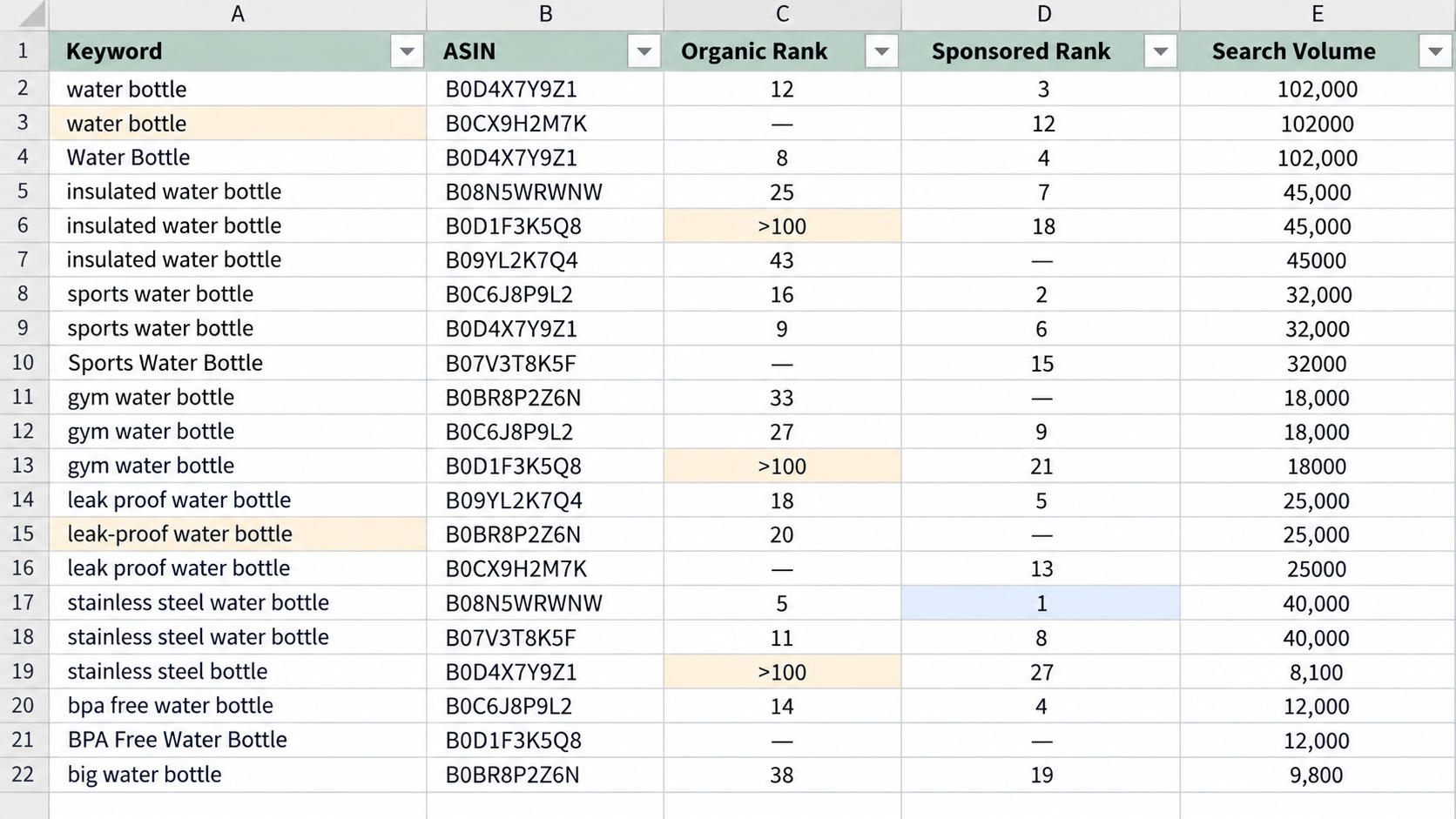
A reverse ASIN export answers the question: what keywords does this product already rank for, organically or through sponsored ads? When you open the export in Excel, you see a long list of rows filled with keywords, rank positions, search volume, and sometimes traffic estimates. It feels complete, but it is almost never in the right shape for strategic decisions. Before you build formulas or charts, understand that raw rows contain hidden structures, repeated terms, duplicate marketplace signals, and context that a simple sort by volume will silently destroy.
Why Raw Keyword Exports Become Messy Fast
Amazon does not export a polished, deduplicated, intent-labeled keyword file. The data you get from SellerSprite or other tools contains one row per keyword and ASIN relationship, with organic and sponsored placements often in the same file. That layout is functional for storage but messy for insight, and the mess appears in four predictable patterns.
The Same Keyword Appears Across Multiple Competitors
If you exported three competitors, the same phrase such as wireless earbuds for running appears three times. Those repeated rows are not errors. They tell you which terms multiple brands compete for. Deleting them early, just because they look like duplicates, removes your ability to calculate keyword overlap.
Organic and Sponsored Rankings Live in the Same Dataset
One export row may show an organic rank of 1 while another row contains the same ASIN and keyword but with a sponsored rank of 3. These are separate placements with separate economics. Mixing them into one rank column will make your competitor analysis misleading.
Branded, Irrelevant, and Ambiguous Queries Create Noise
Raw data will include competitor brand terms, words that match your product loosely, and queries that could fit several product types. A term like apple can belong to an apple slicer, apple watch band, or apple cider vinegar. Without flags, high-volume noise can dominate your whole spreadsheet.
Missing Values Do Not Always Mean Zero
An empty search volume field may mean the tool could not estimate it, not that no one searches for the keyword. Likewise, a blank sponsored rank may mean Amazon does not show a sponsored placement in that particular snapshot, but it does not prove the competitor never bids on the term. Blank needs its own category during cleaning.
The Difference Between Raw Data, Clean Data, and Analysis Data
Think of raw data as the untouched export, clean data as the validated file with consistent text and numbers, and analysis data as the summarized view that supports a decision. Most sellers jump directly from raw to analysis by sorting search volume. That leap creates what we call false insight because it ignores relevance, overlap, and rank context.
Key distinction: Raw data records what Amazon placed. Clean data records what you can trust. Analysis data records what you should do next. Keeping the three layers separate makes your reverse ASIN work far easier to repeat and audit.
Define the Question Before You Touch the Spreadsheet
You clean differently depending on the decision you are making. If you only need to find keyword gaps, the cleaning workflow must preserve the competitor count per keyword. If you are mapping a listing, you need intent labels and relevance flags. Start with one clear question so your cleaning rules support that outcome.
Finding Keyword Gaps
Keyword gaps require you to compare your own ranking file with one or more competitor files. Clean both files with the same rules so a phrase like yoga mat non slip matches instead of appearing on one side as extra spaces or uppercase.
Comparing Competitors
When comparing two brands, you need competitor identity on every row. Without a source ASIN column, you cannot tell which brand owns a rank or how many sellers rank for a shared term.
Building a Listing Keyword Map
For listing SEO, you need to know which keyword variants belong in the title, bullets, description, and backend search terms. The cleaning file therefore needs intent and attribute columns, not just volume.
Mining PPC Targets
For PPC, you must keep organic rank separate from sponsored rank because sponsored visibility tells you where competitors are willing to bid. A keyword with high sponsored competition but weak organic relevance can still be a profitable negative or exact-match target.
Tracking Keyword Changes Over Time
If you plan to track changes monthly, add an export date field from the very beginning. Without a date or snapshot version, you cannot calculate whether new competitors entered a keyword or whether a rank movement came from your listing edit or a seasonal shift.
Export the Right Reverse ASIN Data Before You Start Cleaning
Cleaning cannot fix a wrong export. A well-built reverse ASIN analysis starts with the competitor set, the marketplace, and the file columns. The easiest way to generate the export is to open SellerSprite Reverse ASIN lookup, paste the target ASIN, and download the full keyword profile as a spreadsheet. For more depth, compare that profile against your own product and then save the raw file before making any changes.
Start With a Consistent Competitor Set
Every competitor in your export should occupy a similar customer decision space. If one ASIN is a budget version, another is a premium version, and a third is a bundle, their keyword profiles will not align cleanly for gap analysis. Build your competitor set around the same shopper task and buying criteria.
Same Marketplace
Amazon keywords and ranking signals differ by marketplace. Never combine US exports with UK exports unless you intentionally study cross-market differences. For US-focused analysis, all source ASINs should be ranked on amazon.com.
Same Product Use Case
Choose ASINs that address the same use case. A travel mug and an office mug both appear under insulated tumbler, but a travel-focused shopper may want leakproof and car cup holder keywords while an office shopper wants ceramic feel. Mixed use cases produce confusing keyword gaps.
Comparable Price and Product Format
Price and format influence which keywords convert and which PPC bids are viable. Comparing a $15 basic version with a $60 premium version generates volume overlaps that are real but harder to act on because the buyers differ.
Relevant Child ASINs
If you analyze a variation parent, export the child ASIN that contains the main keywords. Some reverse ASIN tools show keyword data at the parent or child level; collect child-level data when your market experience tells you the variations actually target distinct search intent.
Keep the Marketplace and Time Window Consistent
Amazon rankings change hourly and search volume changes seasonally. If you export competitor A last month and competitor B today, the difference may reflect timing instead of brand strength. Export all competitors within the same day or same week and record that window. When you use SellerSprite, yes, the export includes a snapshot date; keep that value in your file name or metadata.
Export the Full Dataset, Not Just the Keywords You Already Like
Many tools let you filter by volume or rank before exporting. For reverse ASIN analysis, avoid pre-filtering. You need to see low-volume but highly relevant terms, sponsored placements, and keywords that seem off-target because those can reveal Amazon grouping logic and niche demand. Export everything that belongs to the ASIN keyword profile and filter later in Excel.
Keep the Columns That Preserve Analytical Context
Columns are analysis context. If the export gives you keyword, rank type, rank, volume, and conversion-related fields, keep all of them. You can hide columns later, but you cannot recover data that was deleted from the raw export.
- Keyword: The exact query string is the core of every row. Keep it in its original form for at least one column so you can always verify normalization changes.
- Competitor ASIN: If you append multiple exports, add the source ASIN. Without ASIN identity, you can only count rows, not competitors.
- Organic Rank: Store organic rank as a number when available. This column tells you what shoppers see in the main search results without an ad badge.
- Sponsored Rank: Paid rank shows ad placement. Store it separately from organic rank so you can calculate paid pressure for any keyword.
- Search Volume: Keep estimated search volume in its own numeric field. Rounding and resizing are okay later, but do not let this number become text with commas.
- Traffic or Traffic Share: Some reverse ASIN exports include click or traffic share estimates. These help you prioritize keywords that send actual shoppers to your competitor. Keep them because they reveal whether a top-ranked keyword really drives visits.
- Relevance Indicators: Product matching score, relevance score, or item match type are useful flags. If the tool offers them, retain the field but treat it as a starting point for manual review rather than absolute truth.
Add Source Metadata Before Combining Multiple Exports
A clean reverse ASIN workbook should let you answer who, when, and where for every row. Add metadata columns before you paste exports together. You will need them when you compute overlap, monitor changes, or reopen the file three months later.
- Competitor Name: Use a short brand label such as BrandA, BrandB, and YourProduct. The name should be consistent in every file so PivotTables group correctly.
- Source ASIN: If you export multiple ASINs from one brand, keep the ASIN, not just the competitor name, as a separate column.
- Export Date: Record the date as YYYY-MM-DD to make historical sorting easy. Do not write January 2026 because Excel will not always sort it chronologically.
- Marketplace: For US-only analysis, the marketplace column may feel unnecessary, but it protects you if you decide to add CA or UK later. Add it before combining.
Build a Three-Layer Excel Workbook Before Cleaning Anything
The most common Excel mistake in reverse ASIN analysis is cleaning inside the original export and saving over it. Once a value is overwritten or filtered out, you lose the audit trail. Create a workbook hub with three clearly separated layers and protect the raw sheet from edits.
Layer 1: Raw_Export
Name this sheet exactly Raw_Export. Paste the tool output here without changing a single value. If your tool exports multiple files, add each file in full, one below another, and add the source metadata columns in the Raw_Export sheet so you can still filter by competitor.
Layer 2: Clean_Keywords
Create Clean_Keywords with formulas or manual transformations that normalize text, standardize numeric fields, and add flags. Every row in this layer should link back to a row ID in Raw_Export so you can trace any cleaned value to its source. This layer is the one you will use for all further analysis.
Layer 3: Analysis
Keep your PivotTables, overlap tables, and decisions in an Analysis sheet or a small set of sheets. Do not write calculations directly next to raw rows. When you refresh or re-clean the data, your Analysis layer should update without breaking.
Why You Should Never Edit the Raw Export Directly
If you edit raw data directly, you cannot verify what changed after replacing a keyword, deleting duplicate rows, or filling blank ranks. You also risk corrupting the link between your cleaned analysis and the original Amazon data. Protect the Raw_Export sheet by locking cells or simply keeping it as a separate tab that you do not touch.
Add a Data Dictionary Sheet for Repeatable Analysis
A data dictionary is your cleaning rule book. If you revisit this workbook after a month, you will not remember why you decided to classify small as a size flag while compact is a use-case flag. The dictionary keeps your method transparent and consistent, which is also important for team-wide reverse ASIN work.
- Field Name: Record every field name in your Clean_Keywords layer, such as keyword_normalized, organic_rank, sponsored_rank, and cleaning_status.
- Meaning: Describe what the field actually represents. For example, sponsored_rank_num means the position of the product in the sponsored products carousel on page one, or blank if no sponsored placement was observed.
- Data Type: Use type labels such as text, integer, decimal, date, or flag. This prevents you from trying to average a rank that is actually text.
- Cleaning Rule: State the rule concisely, such as trim whitespace, convert to lowercase, replace no rank with blank, and never fill blank rank with 0.
- Analytical Use: Define how you plan to use the field, such as this column feeds the keyword overlap count or this column helps filter out mismatched attributes.
| Field | Meaning | Data type |
| keyword_normalized | Lowercase, trimmed version of original keyword | Text |
| organic_rank_num | Organic search result position; blank when not ranked | Whole number or blank |
| cleaning_status | KEEP, REVIEW, or EXCLUDE | Flag |
Define What a Duplicate Means Before You Remove One
The word duplicate seems obvious, but in reverse ASIN files it hides a trap. Two rows may contain the same keyword but different competitor ASINs. They are not duplicates. Two rows may also contain the same keyword and ASIN but one organic and one sponsored rank. They are complementary data, not problems.
Why Duplicate Keywords Are Often Competitive Signals
If you see wireless pet fence ten times because ten competitors rank for it, that repetition is a strong validation signal. Instead of deleting repeats, convert them into a count that measures competitive overlap. The keyword is more credible when several successful competitors all hold a ranking for it.
Keyword-Level Duplicates vs. Row-Level Duplicates
A keyword-level duplicate is the same query appearing multiple times in the export. A row-level duplicate is the exact same combination of keyword, ASIN, rank type, date, and marketplace repeated twice. Only row-level duplicates are safe to remove automatically. Keyword-level repeats require aggregation, not deletion.
Golden rule: Do not remove a duplicate keyword until you have counted how many source ASINs rank for it.
Use a Composite Key Instead of Deduplicating the Keyword Column
In Excel, create a helper column that represents the full identity of the row. This is your composite key. A composite key lets you detect true duplicates while still preserving the many-to-many relationship between keywords and competitors.
Keyword + ASIN
For one export, combine the keyword and ASIN. This key distinguishes the same keyword ranked by BrandA versus BrandB. A key formula might be =A2&B2 if you add a delimiter, or create =A2&|&B2.
Keyword + ASIN + Rank Type
Add the rank type column to keep organic and sponsored placements separate. This prevents Excel from deleting the sponsored row just because the organic row exists.
Keyword + ASIN + Date for Historical Files
When you stack historical snapshots, include the export date in the key. The same ASIN may legitimately appear twice because the rank changed between months, not because the export created an error.
Preserve Competitor Frequency Before Collapsing Rows
Before you remove any row, create a column called competitor_count or add a COUNTIF formula that counts how many unique ASINs contain the same normalized keyword. This frequency will become your overlap score later. If you aggregate first and count later, you lose the original evidence.
When It Is Actually Safe to Remove a Duplicate
A true duplicate is a row with the same keyword, same ASIN, same rank type, same marketplace, and same snapshot date. If the tool appended the same data twice, that row is safe to remove. If any part of that identity differs, keep the row because it carries a distinct observation.
Normalize the Keyword Column Without Destroying Search Intent
Amazon treats keyword spaces, case, and word order inconsistently enough that you need a normalized keyword column for matching and grouping. Normalization should make identical text comparable without changing the meaning of the search query. The original keyword remains stored in a separate column.
Standardize Case and Extra Spaces
Convert every keyword to lowercase and trim extra spaces at the start, end, and inside. In Excel, use a clean formula such as =TRIM(LOWER(A2)). This makes Yoga Mat, yoga mAT, and yoga mat all match in a VLOOKUP or COUNTIF.
Remove Invisible Characters and Formatting Noise
Exports sometimes contain non-breaking spaces, smart quotes, or line breaks inside a keyword. Use Excel Clean and Trim: =TRIM(CLEAN(A2)) removes line breaks and most invisible characters. You should also convert curly apostrophes to straight apostrophes before you group keywords such as men’s vs men's.
Decide How to Handle Singular and Plural Forms
In Amazon search, singular and plural forms can carry the same intent, but not always. A keyword like running shoe may represent a broader query than running shoes. It is often useful to create an extra flag column, form_variant, rather than merging them blindly. If you merge for overlap, keep the option to split by intent later.
Treat Word-Order Variations Carefully
Some search engines reorder words without changing intent, while Amazon can use word order as a stronger signal. Never assume two word-order variants are the same until you inspect their product results.
When Two Variations Mean the Same Thing
Coffee mug stainless steel and stainless steel coffee mug point to the same product type. You can normalize their word order or use a common token-based grouping if your analysis focuses on category-level gaps.
When Word Order Changes Buyer Intent
For dog food large breed and large dog food breed show different buyer intent, although both are badly formed. The first means a format of dog food, the second is impossible. Keep word order intact unless a human has confirmed equivalent Amazon search results.
Keep Misspellings Only When They Carry Real Search Value
Misspellings sometimes drive meaningful traffic, especially for long-tail product names. If a competitor ranks for a misspelling with measurable search volume, keep it and add a flag misspelling_of instead of deleting it. If the misspelled keyword appears only once and has zero volume, you can exclude it.
Create a Normalized Keyword Column Instead of Overwriting the Original
Always add keyword_norm as a new column and leave the original keyword untouched. This preserves the exact customer query for Amazon matching while allowing you to count and match on a consistent version. Overwriting the original can make it impossible to know whether Amazon ranked you for stainless steel tumbler or tumbler stainless steel.
Clean the Dataset With Flags Before You Delete Rows
Deleting irrelevant keywords feels productive, but it makes your analysis impossible to audit. Instead, design a flagging system that captures why a row should or should not be used. A flag column such as flag_branded, flag_irrelevant, or cleaning_status gives you a clear, reversible decision trail.
Flag Branded Keywords
Branded searches can be valuable for defense but dangerous for listing or PPC expansion. Mark each brand-related keyword so you can analyze them separately.
- Your Brand: If the keyword contains your own brand, flag it as branded_self. These keywords often convert well because shoppers already know you, but they should not be treated as proof that you can win a generic term.
- Competitor Brands: Competitor brand terms such as Stanley 40 oz tumbler or Hydro Flask 32 oz may appear in a competitor reverse ASIN export because Amazon displays related products. Flag them as branded_competitor and decide whether you want to test them in PPC or exclude them from listing SEO.
- Generic Terms That Look Like Brands: Some brands become category terms, such as Kleenex or Band-Aid. If the term describes a category in your market, flag it as generic_brand_like and review it for relevance before excluding it.
Flag Product-Irrelevant Queries
A reverse ASIN export can include adjacent products because Amazon associates them through frequent co-viewing or purchase behavior. For example, a coffee grinder ASIN might rank for reusable coffee filter, which is related but not your exact product. Add a product_irrelevant flag for anything that would never be satisfied by your product.
Flag Attribute Mismatches
Many high-volume keywords do not match your product on a critical attribute. Instead of deleting them manually, create an attribute mismatch flag with a reason. This helps you see patterns such as wrong size or wrong audience in your competitor set.
- Wrong Size: A keyword containing 64 oz may have huge search volume, but if your product is a 32 oz bottle, the term is a mismatch. Mark it as exclude and do not add it to your title.
- Wrong Material: Ceramic mug and stainless steel tumbler imply different materials. If you sell one and the keyword asks for the other, shoppers will bounce.
- Wrong Compatibility: MacBook Air sleeve, MacBook Pro sleeve, and iPad sleeve look similar but have different compatibility constraints. Flag them separately to avoid adding a low-converting incompatible term to your listing backend.
- Wrong Audience: Men, women, kids, pets, and professionals can change the entire shopping context. A camping chair made for adults should not be optimized for toddler chair unless it converts.
Flag Informational or Low-Purchase-Intent Queries
Some queries are research-oriented, such as how to clean a yoga mat or yoga mat thickness guide. They rarely lead to a purchase on Amazon. Flag them as informational or low_intent so they do not contaminate your Amazon SEO target list.
Flag Ambiguous Keywords for Manual Review
When you are not sure whether a term matches, set a manual review flag and leave the row in the analysis until a human checks the actual search results. Automatically excluding ambiguous keywords can remove hidden opportunities such as a niche use case not mentioned in your listing copy.
Create a Cleaning Status Column
A cleaning_status column is your final filter control. Use it after you have applied all flags, not before. Assign KEEP, REVIEW, or EXCLUDE to every row.
- KEEP: Rows marked KEEP are relevant, normalized, and ready for further analysis. They may still need an action decision, but they are safe to include in overlap counts.
- REVIEW: REVIEW means the signal is ambiguous. It stays visible in your reports but does not silently feed into ranking decisions.
- EXCLUDE: EXCLUDE is for rows you do not want in the final keyword set. Hiding them with a filter is safer than deleting them from the sheet because you can still check them later.
Fix Numeric Fields Before You Start Comparing Keywords
Excel treats a blank cell, a zero, and a text value like 1,234 differently. Reverse ASIN data often mixes these values in rank and volume columns. If you do not convert every numeric field consistently, your averages, filters, and formulas will create wrong insights.
Convert Ranking Fields Into Consistent Numeric Values
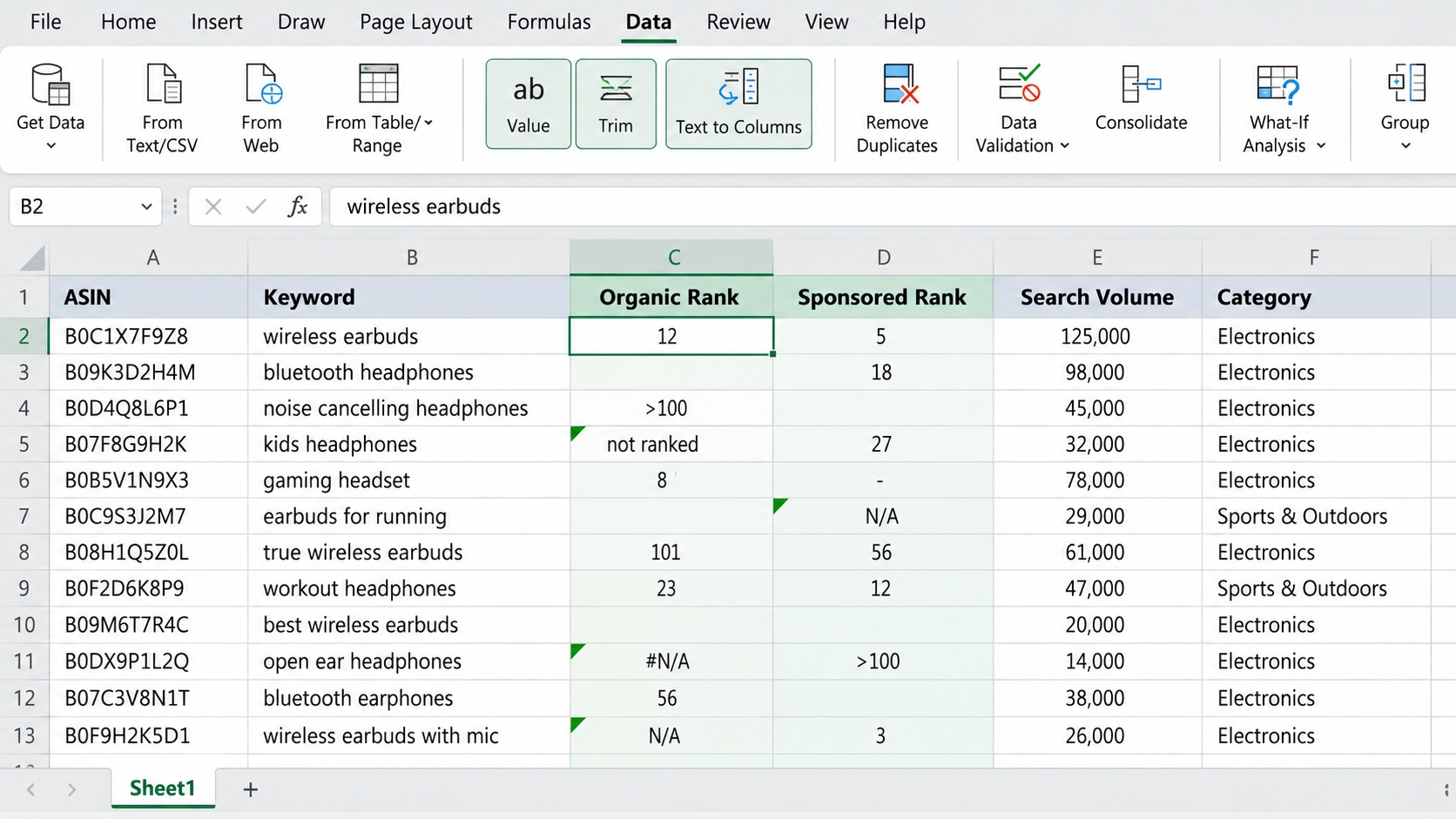
Your export may show rank values as 1, 2, 10, or NR for not ranked. Create a dedicated numeric rank column and define how each representation maps to it.
- Numeric Rank: Store actual rank as a whole number. Organic rank 1 means the product appears first in the organic results during the snapshot.
- Not Ranked: Use the text or code Not ranked rather than 0 because zero can be the best rank in some ranking systems. Create a separate column named organic_ranked with TRUE or FALSE if you need to count how many competitors rank for a term.
- Missing Data: If your tool did not observe the keyword for the ASIN, leave the field blank and add a source_missing flag. Blank and not ranked both may mean the product is not visible, but they come from different data collection paths.
Never Treat Blank Rank and Rank Zero as the Same Thing
Excel users often fill blank ranks with 0 to make formulas work. On Amazon, rank 1 is the best and rank 50 still means visible. If you convert blanks to zero, every missing value becomes a fake top ranking and ruins your gap calculations.
Standardize Search Volume Fields
Search volume should be stored as an integer without commas or currency symbols. If the tool exports 15,000, convert it to 15000 before using it in an average or weighted score. Use Excel VALUE, SUBSTITUTE, or the Text to Columns wizard.
Keep Organic Rank and Sponsored Rank Separate
Create one column for organic rank and a separate column for sponsored rank. Combining them into a single best rank hides whether a competitor reached the top organically or by paying for the position. Maintaining separate fields gives you far better direction for PPC and listing SEO.
Check for Numbers Stored as Text
Excel marks numbers stored as text with a green triangle. You will see it frequently when exports are opened from CSV files. Select the column, use Text to Columns, and choose General or use =VALUE(A2) to convert. Otherwise, COUNTIF and SUM may ignore text-formatted numbers.
Decide How to Handle Estimated Metrics
Almost every reverse ASIN tool provides estimated search volume and estimated traffic share. Estimates are useful for prioritization, but they are not exact Amazon analytics. You should never treat a 20,000 search volume estimate as a guaranteed sales figure.
Use Them for Directional Comparison
Use estimated volume to compare keyword A with keyword B and pick the larger opportunity. The rounding and methodology errors affect both values similarly enough for directional choices.
Do Not Treat Estimated Search Volume as Ground Truth
Validate any final SEO or PPC pick with Amazon search suggestions, Sponsored Products search term reports, or your own brand analytics. Your own click and conversion data should override the estimate when they conflict.
Combine Multiple Competitor Exports Without Losing Their Identity
One reverse ASIN export gives you a single brand snapshot. The real value appears when you compare three, five, or ten close competitors in one workbook. Combining exports is simple when you append rows vertically and preserve a source ID on each row.
Append Competitor Files Vertically
Stack the files one after the other in the Raw_Export sheet. Do not put each competitor in a separate side-by-side column. Vertical stacking lets Excel PivotTables group by competitor name, count distinct ASINs, and filter across all keywords easily.
Keep One Source ASIN Column on Every Row
When you append, add a column named source_asin and fill every row with the competitor product ASIN. This column becomes the identity key for overlap analysis. Do not rely on a product title or brand label because titles change or repeat.
Build a Unique Competitor Table
Create a small Competitors sheet with one row per ASIN and details such as competitor_name, product_name, price_at_export, and notes. This table lets you reference a friendly label without storing the full ASIN name on every row.
Create Competitor-Level Summary Fields
After the append, use COUNTIFS or a PivotTable to generate competitor-level metrics. These fields turn hundreds of rows into digestible comparisons.
- Competitor Count: Count how many distinct ASINs appear in the export. This tells you how broad your competitive sample is.
- Best Organic Rank: You can use MIN to find the best numeric rank per competitor per keyword. Smaller is better, but remember that blank means not ranked.
- Median Organic Rank: Median rank is more stable than average because one outlying rank will not pull it. Use MEDIAN only after excluding blanks.
- Number of Sponsored Competitors: This is the number of competitor ASINs that have a sponsored placement for the keyword. High sponsored competitor count signals a paid auction with real competition.
- Number of Organic Competitors: This is the number of ASINs that rank organically. Strong organic competition means Amazon believes several similar products are relevant for the term.
Why Competitor Count Can Be More Useful Than Search Volume
Search volume says what shoppers search; competitor count says what Amazon currently rewards. A keyword with moderate volume but six close competitors is often more actionable than a million-volume keyword with no proven product match. Competitor count validates product relevance and shows that other successful listings can rank.
Turn Duplicate Competitor Rows Into a Keyword Overlap Table
Overlap is the heart of reverse ASIN analysis. Once you have multiple competitor rows, you can transform them from repeats into competitive knowledge by counting how many ASINs rank for each keyword. The best tool for this transformation is a PivotTable, but you can also use COUNTIF.
Count How Many Competitors Rank for Each Keyword
In the Clean_Keywords sheet, add a field called competitor_count. Use a COUNTIF based on normalized keyword to count how many unique source ASINs have at least one organic or sponsored rank for that keyword. Because you have multiple ASINs per competitor, decide whether you want to count ASINs or brands; for most comparisons, counting ASINs is more precise.
Identify Shared Keywords
Create a bucket column that collapses competitor_count into the following categories.
- 1 Competitor: Private or niche keyword. It may be the result of that competitor's unique listing text or a very specific angle. These are interesting to test but not yet validated by multiple players.
- 2–3 Competitors: This is the opportunity zone. Several brands rank, so the keyword is relevant, but competition is not overwhelming. It may be easier to win than a term with eight ranked sellers.
- 4+ Competitors: Broad, validated market demand. This keyword is likely core to the category. Expect strong organic and sponsored competition, but ignoring it may mean missing the main traffic pool.
Identify Competitor-Specific Keywords
Use a PivotTable where rows are normalized keywords and columns are competitor names. A keyword that appears only in BrandX column may reveal a listing angle they use that you do not. Those BrandX-specific keywords are the fastest way to close a content gap if they are relevant to your product.
Find Keywords Every Major Competitor Ranks for Except You
This is the classic reverse ASIN keyword gap. After you append your own reverse ASIN data to the competitor workbook, filter for rows where competitor_count is high but your ASIN has no rank. These are the highest-value targets because multiple successful products prove demand and relevance.
Separate Broad Market Demand From One-Competitor Experiments
Do not give a one-competitor keyword the same priority as a four-competitor keyword. Four competitors represent broad demand, while one competitor may represent an experiment or a highly specific niche. The overlap table should include the count so the final decision does not accidentally overvalue a low-validation term.
Add Keyword Intent Before You Add a Keyword Score
Search volume and rank cannot tell you why a shopper searched. Two keywords with similar volume can lead to completely different page positions and conversion rates. Add an intent label to every useful keyword so your Excel filters align with real buying stages.
Classify Keywords by What the Shopper Is Trying to Find
Start with a small list of broad intent clusters. A taxonomy that is too long becomes impossible to maintain. For most Amazon categories, seven buckets are enough.
- Core Category: Terms such as yoga mat, resistance band, or running shoes belong to this cluster. They define the product itself and usually have high volume.
- Attribute or Feature: Non slip, extra thick, TPE, and odor resistant are attribute terms. They help shoppers narrow down a feature that matters to them.
- Use Case: Yoga mat for women, yoga mat for hot yoga, or yoga mat for knee pain describe how and where the product is used. Use-case terms often convert at different rates than category terms.
- Audience: Men, women, kids, seniors, beginners, and professionals specify the audience. Audience intent may match a different version or variation.
- Compatibility: Compatibility terms are essential for electronics, cases, parts, and accessories. They include phrases such as for iPhone 15 Pro, fits 2026 Tacoma, or compatible with Ninja Foodi.
- Problem/Solution: Terms like for neck pain, stops sliding, or prevents wrinkles describe a problem the shopper wants to solve. These keywords can be high converting because they demonstrate specific motivation.
- Branded: Branded keywords include your brand or a competitor brand. Keep branded as a separate intent cluster so you can view your defense terms and competitor conquest terms in isolation.
Separate Intent Clusters From Simple Synonym Groups
Synonyms such as notebook, laptop, and computer may represent different intents to different shoppers. Intent clustering should group by what the shopper wants to do, not by dictionary similarity. A folder keyword and a computer keyword may share the word laptop, but one is an accessory and the other is a device.
Why Two Keywords With Similar Volume Can Deserve Opposite Actions
Compare yoga mat and yoga mat for men. Both may have similar volume at certain times, but the second targets a much narrower audience. If your product is a premium 8mm yoga mat marketed to serious practitioners, yoga mat for men may not align with your actual customer. Intent labels prevent you from treating every high-volume keyword as equally valuable.
Add an Intent Cluster Column to the Clean Dataset
Create a column named intent_cluster and manually classify the rows after relevance screening. If you have thousands of keywords, start with the top 200 by competitor count and volume, then cover the tail later. You can use formulas to search for keywords such as for women to pre-fill, but a human should review each cluster.
Build the Excel Metrics That Actually Help You Make Decisions
Reverse ASIN analysis is not about memorizing keyword values. It is about turning raw rows into metrics that answer: should I add this to my listing, test it in PPC, monitor it, or ignore it? These eight metrics form a practical decision layer.
Competitor Count
Count how many tracked ASINs rank for the keyword. High competitor count signals a mainstream keyword; a count of one signals a niche or accidental match.
Best Competitor Organic Rank
Find the best organic rank among all competitor ASINs. If no competitor ranks organically but many rank through sponsored, the keyword may be dominated by ads and weak in natural search relevance.
Median Competitor Rank
Median rank gives you a more realistic benchmark than the best rank. It tells you the typical page position a well-optimized competitor reaches.
Sponsored Competitor Count
Count how many ASINs hold a sponsored placement. This tells you the paid competition intensity for the keyword.
Your Rank
Add your own ASIN organic rank if you have a reverse ASIN export for it. Leave it blank when you do not rank. Do not fill it with 0.
Rank Gap
Rank gap is your rank minus the best or median competitor rank. A large positive gap means you rank far below the pack and need additional SEO or PPC pressure.
Search Demand
Keep estimated search demand available to judge the opportunity size. Use volume band such as high, medium, low instead of exact numbers to avoid false precision.
Intent Fit
Rate intent fit as strong, partial, or weak based on whether the keyword matches your product attributes, audience, and use case. This qualitative metric overrides raw volume.
Action Status
The final status should map every row to one of four actions. You can build a simple if-formula using competitor count, your rank, and intent fit.
- Defend: Keywords where you rank or convert well and that matter to your brand. Protect these terms through listing copy, PPC bids, and inventory availability.
- Expand: Relevant keywords where you have no rank or rank behind multiple competitors. Add these to your listing or backend search terms first because the demand is validated.
- Test: Keywords that are relevant but unproven, such as a one-competitor niche term. Use PPC to test conversion before changing your listing.
- Ignore: Irrelevant, mismatched, informational, or no-intent keywords. Hide them from your final action list so they cannot distract future content work.
Why Filter-First Usually Beats Score-First
Many sellers build a weighted score before removing irrelevant terms. That gives a huge numerical weight to branded or mismatched keywords. Filter to relevant rows first, then apply a score to the remaining candidates. A simple filter-first approach is easier to explain and less likely to encode hidden bias.
Use PivotTables to Answer Questions, Not Just Summarize Rows
A PivotTable is the fastest way to answer competitive questions without writing complicated formulas. Start from a clean dataset that includes keyword_norm, source_asin, competitor_name, organic_rank, sponsored_rank, search_volume, intent_cluster, and cleaning_status. Then create pivots to solve specific decisions.
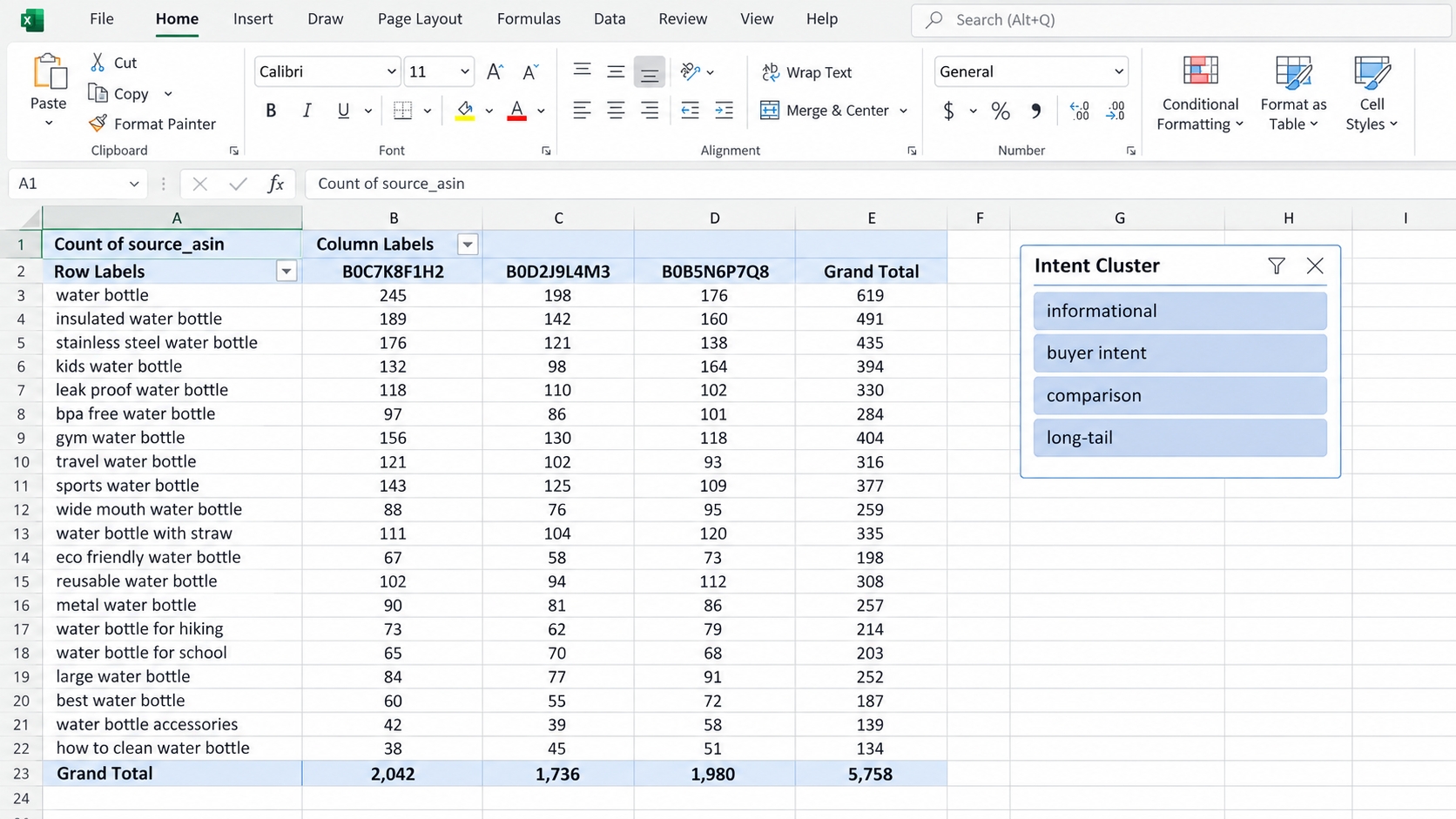
Pivot 1: Which Keywords Are Shared by the Most Competitors?
Place keyword_norm in Rows, source_asin in Values, and set the value field to Count Distinct. Sort by the count of distinct ASINs descending. This pivot instantly shows your biggest market-shared keywords.
Pivot 2: Which Intent Clusters Carry the Most Search Demand?
Put intent_cluster in Rows and search_volume in Values as Sum. This shows whether your opportunity comes from core category, use case, or feature keywords. It can redirect your listing wording toward the cluster that actually sends traffic.
Pivot 3: Which Competitor Owns the Most Top-10 Rankings?
Add a calculated field or use your clean rank column with a filter of organic_rank <= 10. Count source_asin per competitor. A competitor with a high count owns more search real estate and should be studied deeply.
Pivot 4: Where Is Sponsored Visibility Stronger Than Organic Visibility?
Create one count of rows where sponsored_rank is not blank and one count where organic_rank is not blank. Compare these fields by keyword. Keywords with heavy sponsored presence but sparse organic presence may be easier to target with PPC than SEO.
Pivot 5: Where Are Your Biggest Keyword Gaps?
Include your own ASIN among the competitors. Put keyword_norm in Rows and source_asin in Columns, then filter for rows where your ASIN is blank but competitor columns are not blank. This gives you the classic gap report.
Add Filters for Marketplace, Competitor, Intent, and Rank Type
Always include slicers or report filters for marketplace, competitor_name, intent_cluster, and rank_type. They enable you to switch from an all-competitor view to one-brand view without changing the underlying data.
Use Conditional Formatting to Surface Exceptions, Not Decorate the Sheet
Conditional formatting shines when it highlights things that need action: high overlap, missing ranks, large gaps, or rows still in review. Use it sparingly on the Clean_Keywords and Analysis sheets so colors always have a meaning.
Highlight Keywords Shared by Multiple Competitors
Apply a color scale to the competitor_count field. Keywords shared by four or more competitors become dark red or orange, while one-competitor keywords remain light. This visual immediately exposes validated market terms.
Flag High-Demand Keywords Where You Do Not Rank
Use a formula-based formatting rule: if search_volume is high and your_rank is blank, highlight the row border. These are premium expansion targets when combined with high competitor count.
Flag Keywords Where Paid Visibility Dominates Organic Visibility
Add a helper field sponsored_only: if sponsored_rank is not blank and organic_rank is blank, return TRUE. Conditional format this column with a different color to show PPC-heavy terms.
Highlight Large Rank Gaps
Create a rank_gap field and use a color scale: larger numbers get red, smaller numbers get green. A red gap means competitors rank far above you and the keyword deserves serious SEO attention.
Mark REVIEW Rows Before Manual Validation
Format cleaning_status=REVIEW with a yellow background so you do not accidentally make decisions on uncertain rows. When the row is validated, change the status to KEEP or EXCLUDE and the color disappears.
Use Power Query When Reverse ASIN Analysis Becomes Recurring Work
Manual Excel cleaning works for a one-time project, but a monthly reverse ASIN workflow should not rely on copy-paste formulas and manual duplicate removal. Power Query automates the repetitive part of cleaning while leaving relevance judgment in your hands.
When Manual Excel Cleaning Stops Scaling
The first sign you need Power Query is when you spend more time trimming, converting data types, and refreshing formulas than reviewing insights. If you analyze more than five ASINs every month, automation saves hours and reduces errors.
Import Multiple Reverse ASIN Exports Into One Query
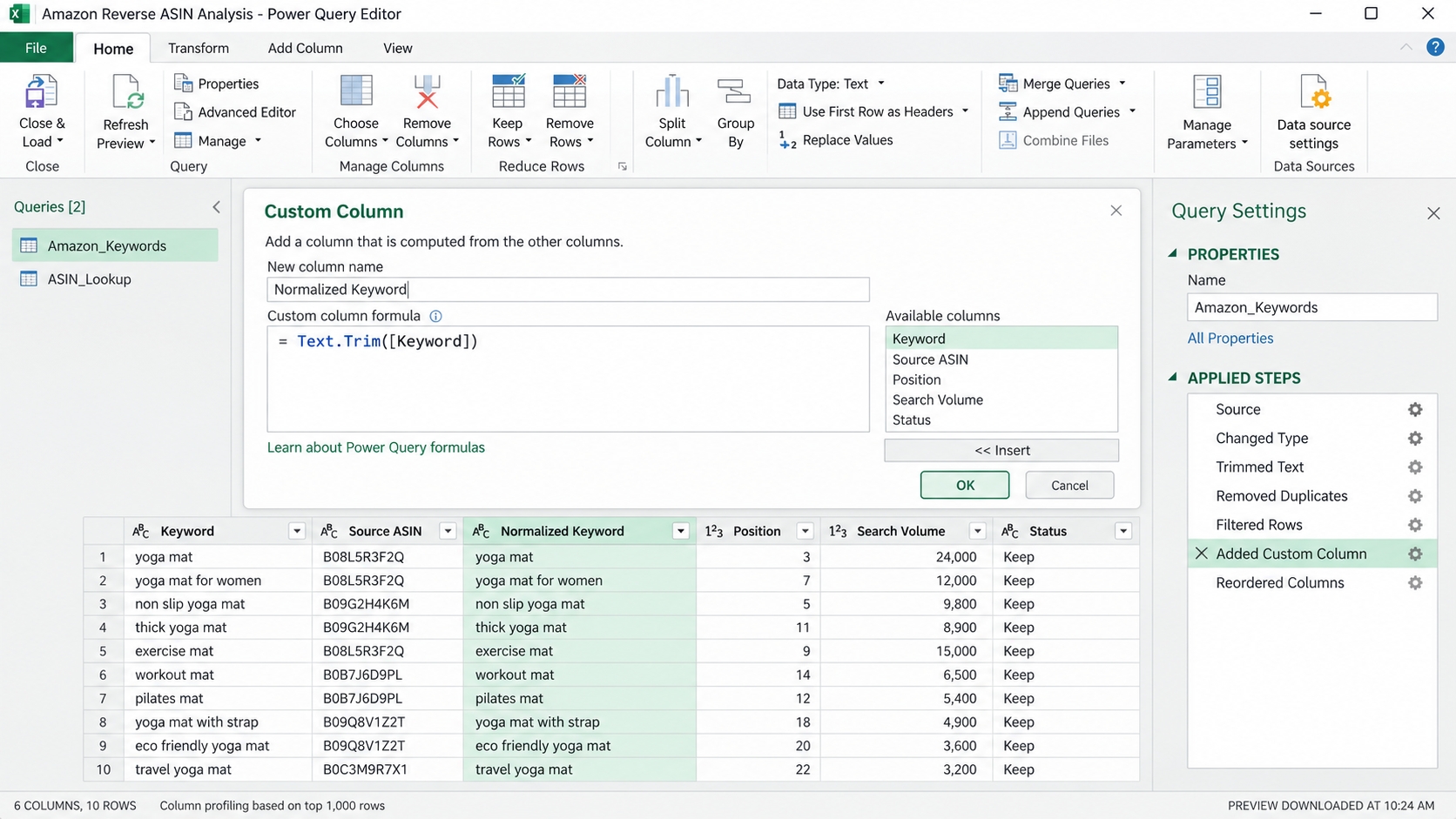
In Excel, go to Data > Get Data > From Folder and select a folder that contains your competitor CSV files. Power Query can combine all files from the folder by appending them vertically. Create a custom column that reads the file name and extracts the ASIN or competitor name.
Build Repeatable Cleaning Steps
Power Query records each transformation as a step. This is your cleaning layer on autopilot.
- Change Data Types: Tell Power Query that organic_rank and sponsored_rank are whole numbers or text, search_volume is a whole number, and keyword is text. This prevents automatic type changes when you refresh a new file.
- Trim and Normalize Text: Add a custom column using Text.Trim and Text.Lower to normalize the keyword. In Power Query, the step might look like = Text.Trim(Text.Lower([Keyword])).
- Filter Rows: Filter out obvious errors such as blank keyword rows and rows where marketplace is not US. Do not filter out low-volume terms at this stage because Power Query will refresh the same filter every month.
- Remove True Duplicates: Use Remove Duplicates based on composite key columns only after you have preserved the competitor and rank type fields. True duplicates disappear, while legitimate repeated ownership of the same keyword remains.
- Append Files: Format the append step so every new export in your folder is added without losing source metadata. Keep the source file name to add competitor identity.
Refresh Instead of Rebuilding the Workbook
Once the query is configured, the next month you simply drop new export files into the folder and click Refresh. Power Query pulls in the new rows, applies every cleaning step, and updates the output table. Your PivotTables and decision reports refresh automatically if you point them at that table.
Keep Manual Relevance Decisions Outside the Automated Cleaning Layer
Automation cannot decide whether a keyword matches your product. Use Power Query for type conversions, text normalization, filtering true errors, and appending files. Keep cleaning_status, intent_cluster, flags, and attribute mismatch labels where a human can review and update them.
Compare Two Reverse ASIN Exports to Find What Changed
Reverse ASIN data is most powerful when you observe it over time. Comparing two snapshots reveals whether competitors are expanding into new keywords or losing organic positions. If you keep a clean historical file, these comparisons become straightforward.
Add Export Date to Every Snapshot
When you export today, add the date in a column named export_date. Do not rely on file names because historical files can be renamed. Use an ISO date format YYYY-MM-DD so text sorting works.
Match Keywords Across Two Time Periods
Use normalized keyword as the match key. If keyword_norm is identical in both exports, a VLOOKUP or XLOOKUP can pull the old rank into the new file. Do not match on raw keyword because spacing and case differences create false misses.
Identify Newly Appearing Keywords
Filter the new snapshot for normalized keywords that do not exist in the old snapshot. A newly appearing keyword may come from a new competitor listing or recent indexing. If your own product has started ranking for it, it may be a new opportunity to strengthen in your listing.
Identify Disappearing Keywords
Look for keywords that existed in the old snapshot but are not present in the new one. Losing a keyword can happen because of listing changes, product suppression, or a deliberate SEO update. Disappearing keywords often deserve a warning label before you assume the term is dead.
Measure Organic Rank Movement
Create a rank_movement field by subtracting the old organic rank from the new organic rank. Negative movement means improvement, positive movement means loss. Use a median movement to summarize a competitor's overall trajectory instead of reacting to one noisy keyword.
Detect Sponsored Visibility Changes
Compare the sponsored rank and sponsored presence in both snapshots. If a competitor starts appearing in sponsored slots for many keywords, they likely launched a new PPC campaign. This is useful market intelligence and a reason to raise your own bid awareness.
Separate Portfolio Change From Ranking Change
A competitor may not be ranking for a keyword because they changed their product catalog or lost the variation. Before you call it a rank improvement for yourself, check whether the ASIN still exists and remains relevant. Portfolio changes are not the same as winning the keyword.
Turn the Clean Spreadsheet Into Four Seller Decisions
At the end of the workbook, you should have a small Action_List sheet with only the keywords that need a decision. If your spreadsheet still contains thousands of rows, you have not finished analysis. Reduce the list to four clear actions and export it or share it with your team.
Decision 1: Add to Listing SEO
These are the terms most competitors validate and your product can genuinely satisfy. They should go into your title, bullets, or backend search terms after relevance confirmation.
- High Relevance: The keyword describes your actual product or one of its core benefits. A clear shopper would click because the product matches.
- Strong Competitor Validation: Several competitors already rank. You are not inventing a demand where no search pattern exists.
- Clear Keyword Gap: Your ASIN does not currently rank or ranks far below the median. This is the target for listing SEO because a small content improvement can close the gap.
Decision 2: Test With PPC
Some relevant keywords should not go into your listing until you prove conversion. PPC is the fastest, least risky validation method.
- Relevant but Unproven Intent: The keyword seems related but you are unsure how the shopper's mental model differs from your product. Run a low-bid exact match campaign and watch conversion rate.
- Strong Competitive Visibility: When four or more competitors advertise on a keyword, PPC can let you intercept shoppers while you build organic strength. This is usually a short-term bridge, not a permanent strategy.
Decision 3: Monitor
These keywords are not actionable today but deserve a place in a future export. Monitoring helps you track niche market changes.
- Emerging Keywords: Newly appearing keywords with rising volume or rising competitor count can emerge over several months. Keep them in a monitoring list and review every 30 days.
- Competitor-Specific Terms: Terms unique to one competitor do not yet prove category demand. Monitor them to see whether other brands eventually enter.
Decision 4: Ignore
Ignoring is a decision. These keywords should be hidden from reports so they do not distract future content teams.
- Irrelevant Keywords: Queries that stem from a different product type or different customer job should land here.
- Incompatible Attributes: A keyword that demands a size, color, material, or compatibility that your product does not offer should be ignored for organic SEO. Adding it may attract bad reviews and returns.
- High Volume With Weak Product Fit: The biggest trap in reverse ASIN analysis is sorting by volume. If the term does not fit your product, high volume only guarantees a disappointed click.
Seven Reverse ASIN Excel Mistakes That Create Fake Insights
Cleaning is where false insights are born. If you make one of these mistakes early, your final action list may look logical but actually rest on broken assumptions. Check your own workbook against these seven common errors.
Deleting Duplicate Keywords Before Counting Competitor Overlap
When you remove duplicates from the keyword column, you erase the fact that four competitors rank for a keyword. This is the single most destructive mistake in reverse ASIN Excel work. Count competitor overlap before considering removal.
Cleaning the Only Copy of the Raw Export
Saving your cleaning changes directly over the original file means you cannot audit a weird number or verify a normalization decision. Always keep the raw export as a locked source tab.
Mixing Organic and Sponsored Rank
A single ranking score cannot tell you whether a product appears organically, exists only in sponsored slots, or wins both. The two rank types have completely different costs and permanence. Keep them separate.
Treating Blank Values as Zero
Blank rank does not equal zero rank. Zero in a rank field becomes the best possible score in your formulas and makes every missing keyword look like a rank-one opportunity.
Combining Different Marketplaces or Time Windows
Amazon US keywords, UK keywords, and German keywords can share the same English phrase but rank differently. Combining them without a marketplace filter produces averages that describe no real market.
Sorting by Search Volume Before Filtering for Relevance
The highest-volume irrelevant keyword always looks compelling. If you sort before relevance filtering, you will likely add a mismatch to your list and miss a lower-volume phrase that matches your product exactly.
Building a Complex Score Before Fixing Data Quality
A weighted score formula multiplies every data quality error. Normalize, flag, clean, and filter before you build composite metrics.
Self-audit: After cleaning, pick 5 random keywords and trace them back to Raw_Export. Can you explain every duplicate, blank, and flag? If not, your reverse ASIN analysis still contains hidden noise.
The Final Reverse ASIN Excel Workbook Structure
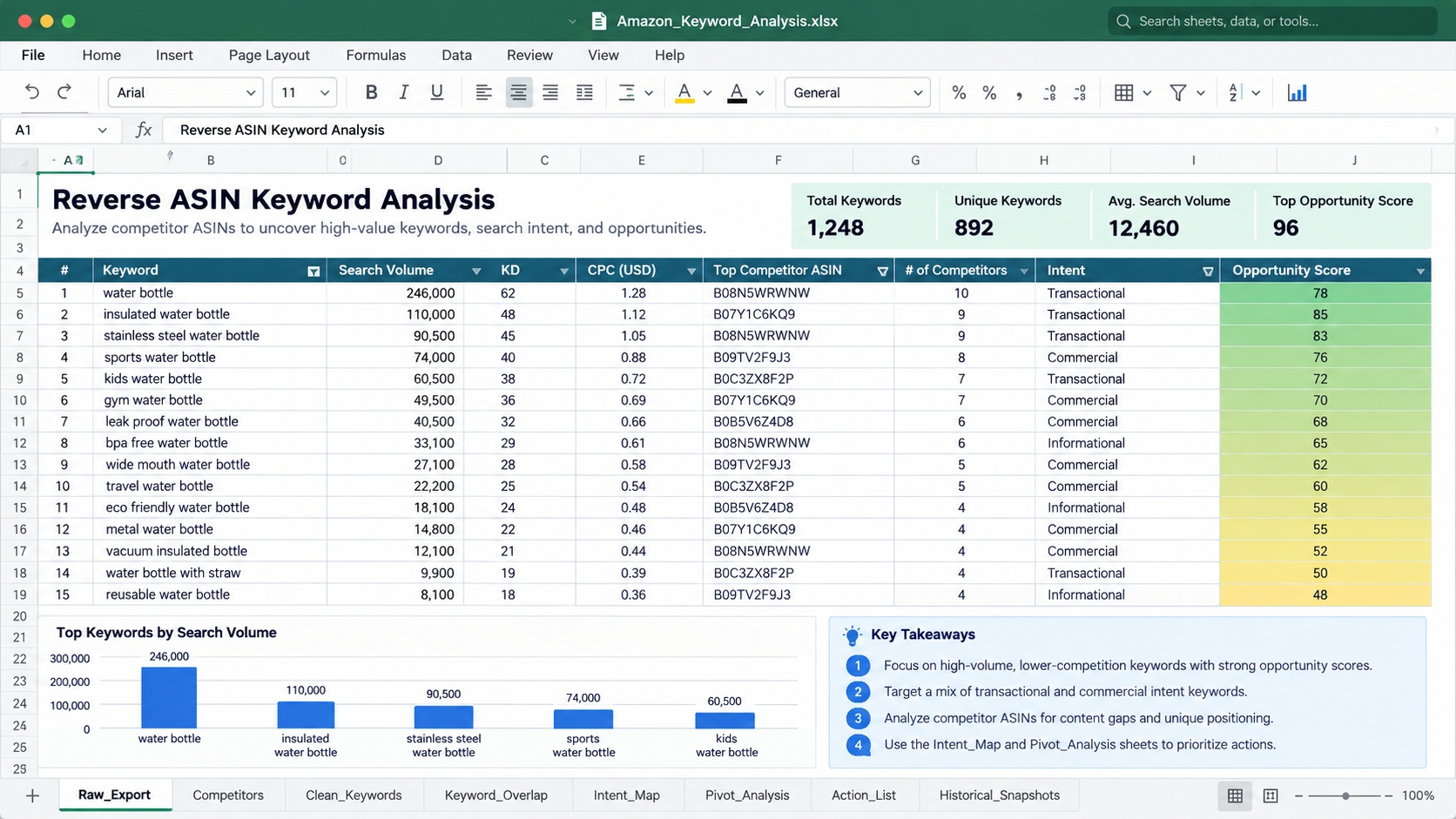
A repeatable workbook should have a predictable structure. You should be able to open any competitor research file and know exactly where to find the source data, clean data, insights, and actions. This eight-sheet layout covers those needs.
Sheet 1: Raw_Export
Contains every original reverse ASIN export, one row per observation, with source_asin and export_date metadata. Do not hide or edit this sheet.
Sheet 2: Competitors
Holds the friendly label, brand name, ASIN, product name, marketplace, and export date for each tracked source. This is your lookup table for competitor labels.
Sheet 3: Clean_Keywords
Contains normalized keywords, flags, intent_cluster, cleaning_status, numeric rank, and all other validated fields. This sheet should be the only source for analysis.
Sheet 4: Keyword_Overlap
Summarizes how many ASINs rank for each keyword. It may also include a list of competitor-specific terms and a true keyword gap report.
Sheet 5: Intent_Map
Documents your intent taxonomy and group definitions. This sheet helps another team member understand why cool white LED is in attribute while LED strip lights is in core category.
Sheet 6: Pivot_Analysis
Contains the five recurring PivotTables. Place each pivot on its own area with a title naming the question it answers.
Sheet 7: Action_List
Final output for Defend, Expand, Test, and Ignore. Include keyword, action, evidence metrics, and a task owner column if you work in a team.
Sheet 8: Historical_Snapshots
A protected archive of cleaned data from previous dates. You can use it for month-over-month comparison without re-exporting old files. Add a snapshot_date filter to this sheet.
FAQ
Can You Export Reverse ASIN Data to Excel?
Yes. Amazon reverse ASIN tools such as SellerSprite produce a downloadable CSV or Excel file of the keyword profile. You can export the full keyword list, search volume, organic rank, sponsored rank, and traffic-related estimates for a given ASIN. The file usually needs cleaning before you use it for competitor comparisons because it contains duplicate keywords across multiple marketplace placements and rank types. When exporting, choose a spreadsheet format and save the raw file as its own sheet before applying formulas.
Which Columns Should I Keep in a Reverse ASIN Export?
Keep keyword, source ASIN, organic rank, sponsored rank, search volume, traffic or traffic share, relevance score, export date, and marketplace. Each column preserves a different context: rank type tells you whether the visibility is paid or organic, source ASIN lets you compare multiple competitors, and export date supports historical analysis. If you delete the keyword in its original form, you also delete the ability to audit later normalization. Add columns like competitor name, source ASIN, and snapshot date to raw data rather than removing source fields.
Should I Remove Duplicate Keywords From Reverse ASIN Data?
Not automatically. A duplicate keyword that appears because multiple competitors rank for it is a validation signal, not a data error. Before removing any row, use a composite key such as keyword + source ASIN + rank type + export date. If the exact same observation occurs twice, you can remove the true duplicate. If the keyword repeats because different ASINs rank for it, you should count the competitor overlap and keep the repetition for analysis.
How Do I Combine Reverse ASIN Exports From Multiple Competitors?
Append the raw exports vertically in one sheet rather than placing them side by side. Add a source ASIN column and a competitor name column to every row before combining. Ensure the marketplace and export date fields are identical or clearly marked, then normalize the keyword text so terms like yoga mat and Yoga Mat match. After the append, create a PivotTable or COUNTIF to count how many competitors rank for each keyword.
How Do I Separate Organic and Sponsored Keywords in Excel?
Create two clean columns: organic_rank and sponsored_rank. If your raw export has a rank type column, you can use Power Query or a pivot to split rows into organic and sponsored. If each row has a single rank position but you need to know whether it is paid or organic, keep a rank_type field and then use filters to analyze each channel separately. For a cleaner structure, reshape the data so every logical keyword and ASIN combination has separate fields for organic rank and sponsored rank.
How Do I Find Keyword Gaps in Excel?
Create a clean dataset that includes your own reverse ASIN data and your competitor ASIN data. Normalize keywords and use a PivotTable with keyword_norm in rows and source_asin in columns. Filter for rows where the competitor columns have a rank or count greater than zero but your ASIN column is blank. Those are your high-priority reverse ASIN keyword gaps. You can also calculate your rank gap with a VLOOKUP by comparing your organic rank with the best competitor organic rank. More detail is in our competitor keyword gap analysis guide.
Next Steps
- Read the full Reverse ASIN strategy guide to set your competitor research objectives before opening a spreadsheet.
- Export at least three US competitors with the SellerSprite Reverse ASIN keyword lookup and save the original files in one folder.
- Build the Raw_Export, Clean_Keywords, and Analysis layers, then create the eight-sheet structure described above.
- Run the final Clean_Keywords data to build a keyword overlap PivotTable and filter your action list for Defend, Expand, Test, and Ignore.
- Add monthly Power Query automation or a Historical_Snapshots sheet so the next reverse ASIN analysis takes minutes, not hours.
References
- Amazon – What Is Amazon Brand Analytics? View
- Microsoft Support – Import Data From a Folder With Multiple Files (Power Query) View
By SellerSprite Success Team
The SellerSprite Success Team combines deep Amazon marketplace expertise with data science to help sellers grow profitably. With years of experience in e-commerce analytics, we focus on ethical, sustainable strategies that align with Amazon's evolving algorithms and policies. Our insights are trusted by thousands of sellers worldwide.
Last updated: 2026-09-09